
Read this post to embed video in Chamilo LMS using Vdocipher. You paste the VdoCipher embed code in a small HTML file, upload that file to the course Documents, and add it to a learning path. Students watch the DRM-encrypted video inside Chamilo, and your course video will be secure from piracy.
This guide shows every step with screenshots. We tested it on a fresh install of Chamilo 3.0.1 with default settings, so you don’t have to change any admin settings to make it work.
Table of contents
Why Chamilo LMS needs a course video hosting
Chamilo is a free, open-source LMS released under the GNU GPL v3 license. Schools, universities and training companies use it because there is no license fee. You install it on your own server, or pay a hosting provider to run it for you.
Chamilo handles courses, tests, learning paths, assignments, forums and certificates well. Video is where it gets weak. You have two default options, and both are a problem if your course is paid or confidential.
Upload the MP4 to Chamilo Documents. The video is stored as a plain file on your server. Chamilo gives every document a download link, and anyone who can open the lesson can save the file. Every view is also served from your own server, so a few hundred students watching at once can slow down the whole LMS.
Embed a YouTube or Vimeo video. An unlisted YouTube video can be watched by anyone who has the link. Students share links, and free downloaders work on YouTube in a couple of clicks. You also have no control over ads and recommended videos at the end.
A secure video host fixes both problems. With VdoCipher, the video is encrypted with Google Widevine and Apple FairPlay DRM, streamed from a CDN instead of your Chamilo server, and can carry a dynamic watermark with the viewer’s details. Chamilo stays the place where students log in and take the course. VdoCipher only plays the video.
What you need before you start
- A Chamilo site where you are an administrator or a teacher of the course. Self-hosted or hosted by a provider, both work.
- A VdoCipher account. The free trial is enough to follow this guide.
- A plain text editor. TextEdit on Mac (Format → Make Plain Text), Notepad on Windows, or VS Code.
Step-by-step: Add a VdoCipher video to a Chamilo course
The whole process takes about 10 minutes. Steps 1 to 3 happen in VdoCipher. The rest happens in Chamilo.
Step 1: Create a VdoCipher account
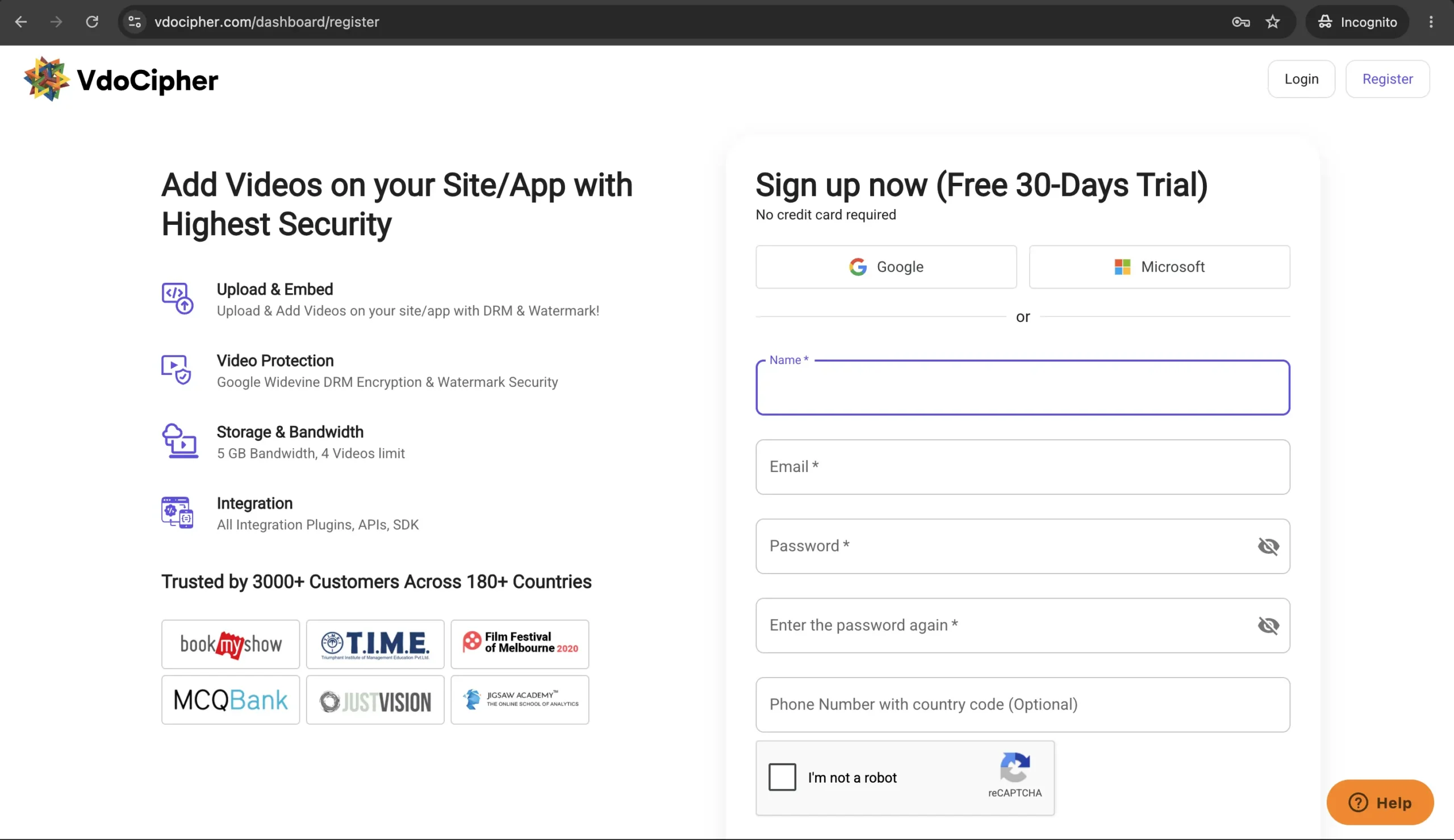
Go to vdocipher.com and sign up. No credit card is needed. The trial includes all the premium features like DRM encryption, dynamic watermarking, the custom video player and analytics.
Step 2: Upload your course video
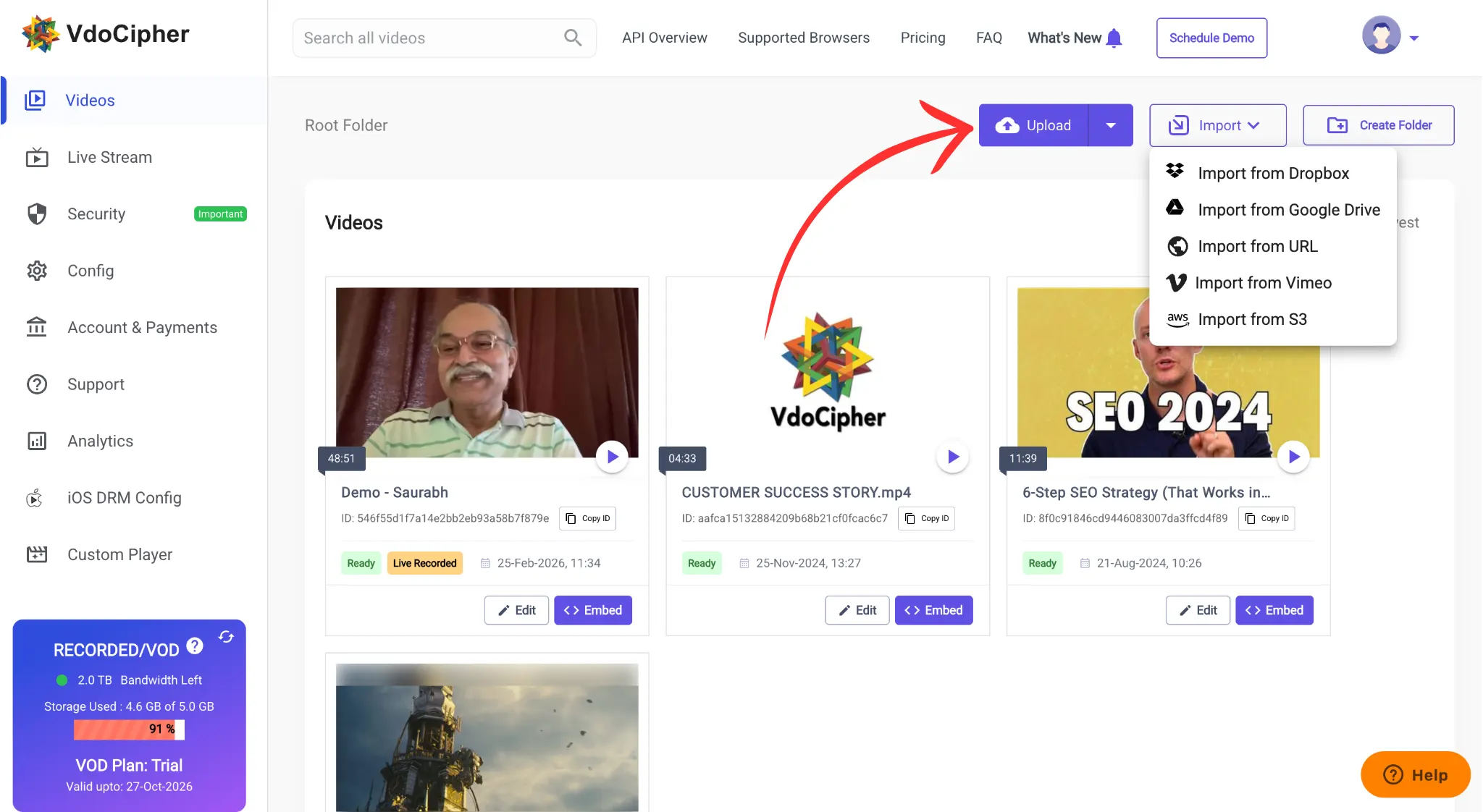
In the VdoCipher dashboard, upload the lesson video from your computer, or import it from a URL, Dropbox or Google Drive. Processing usually takes a few minutes, depending on the file size. Encryption is applied automatically, so there is nothing to switch on.
Step 3: Generate the embed code
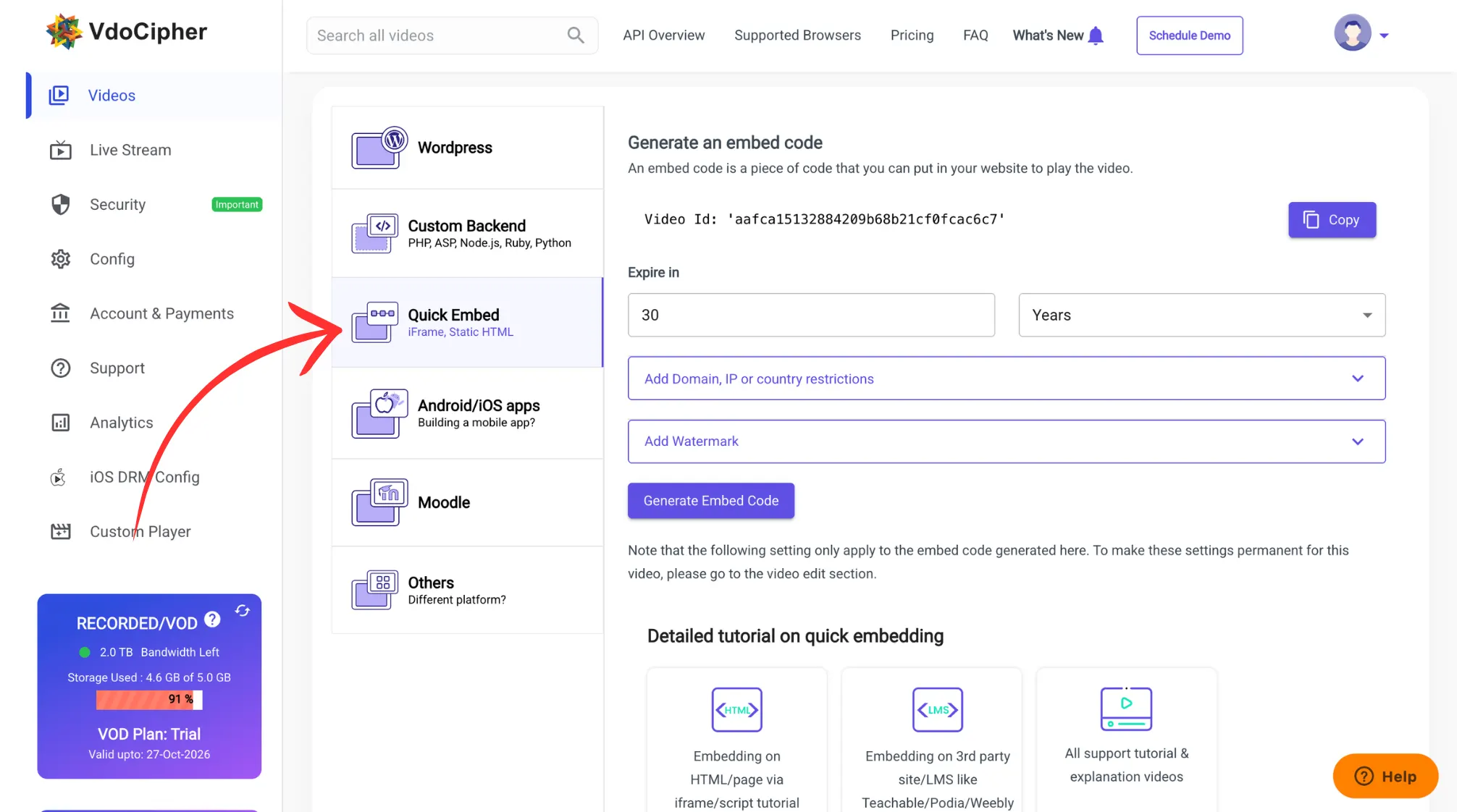
Click Embed next to the video and open Quick Embed. Set the watermark text and the embed expiry. Add your Chamilo domain (for example elearning.yourschool.com) to the domain whitelist, so the video plays only inside your LMS. Click Generate embed code and copy the iframe.
Step 4: Create the course in Chamilo
Log in to Chamilo as an admin. Go to Administration → Courses → Add course. Enter a title, for example “Secure Video Course”. The code is optional; Chamilo creates one if you leave it empty. Keep the other fields as they are and click Create a course.
If you are a teacher and the course already exists, skip this step and open your course.
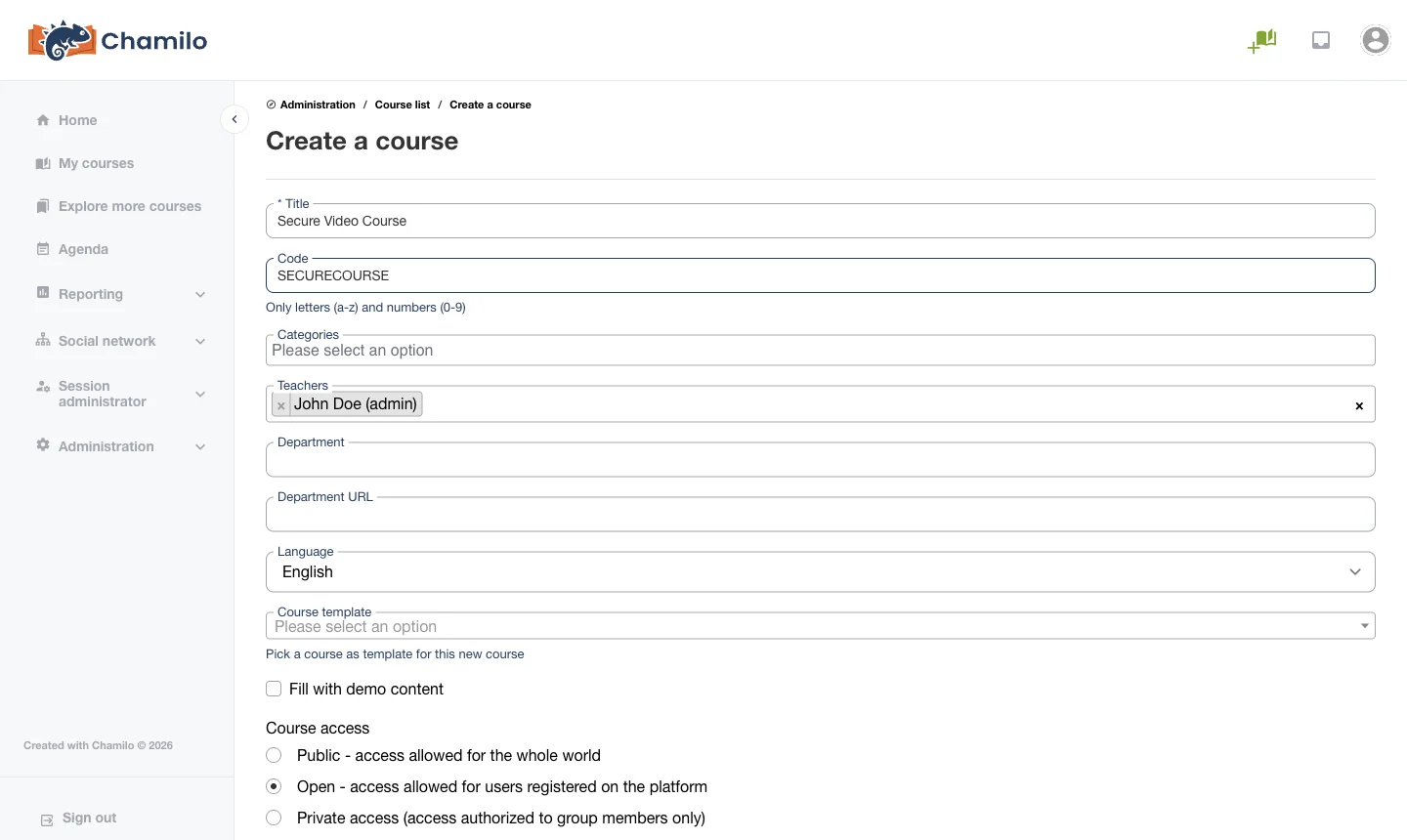
Step 5: Put the embed code in an HTML lesson file
Open your text editor and paste the template below. Replace the <iframe> line with the embed code you copied in Step 3. Change the title and the text to match your lesson.
<!DOCTYPE html>
<html>
<head>
  <meta charset="utf-8">
  <title>Lesson 1 - Introduction</title>
</head>
<body style="font-family: Arial, sans-serif;">
  <h2>Lesson 1 - Introduction</h2>

  <iframe src="https://player.vdocipher.com/v2/?otp=YOUR_OTP&playbackInfo=YOUR_PLAYBACK_INFO"
    style="border:0;height:360px;width:640px;max-width:100%"
    allowFullScreen="true" allow="encrypted-media"></iframe>

  <p>Watch the full lesson before moving to the next module.</p>
</body>
</html>
Save it as lesson-1-introduction.html. Chamilo uses the file name as the document title, so give it a name students will understand. Keep allow="encrypted-media" in the iframe, because the DRM player needs it. You can put more than one video in the same file, and you can add notes, images or links under the video.
Step 6: Open Documents and click Upload
Open the course. Click the Documents tool.
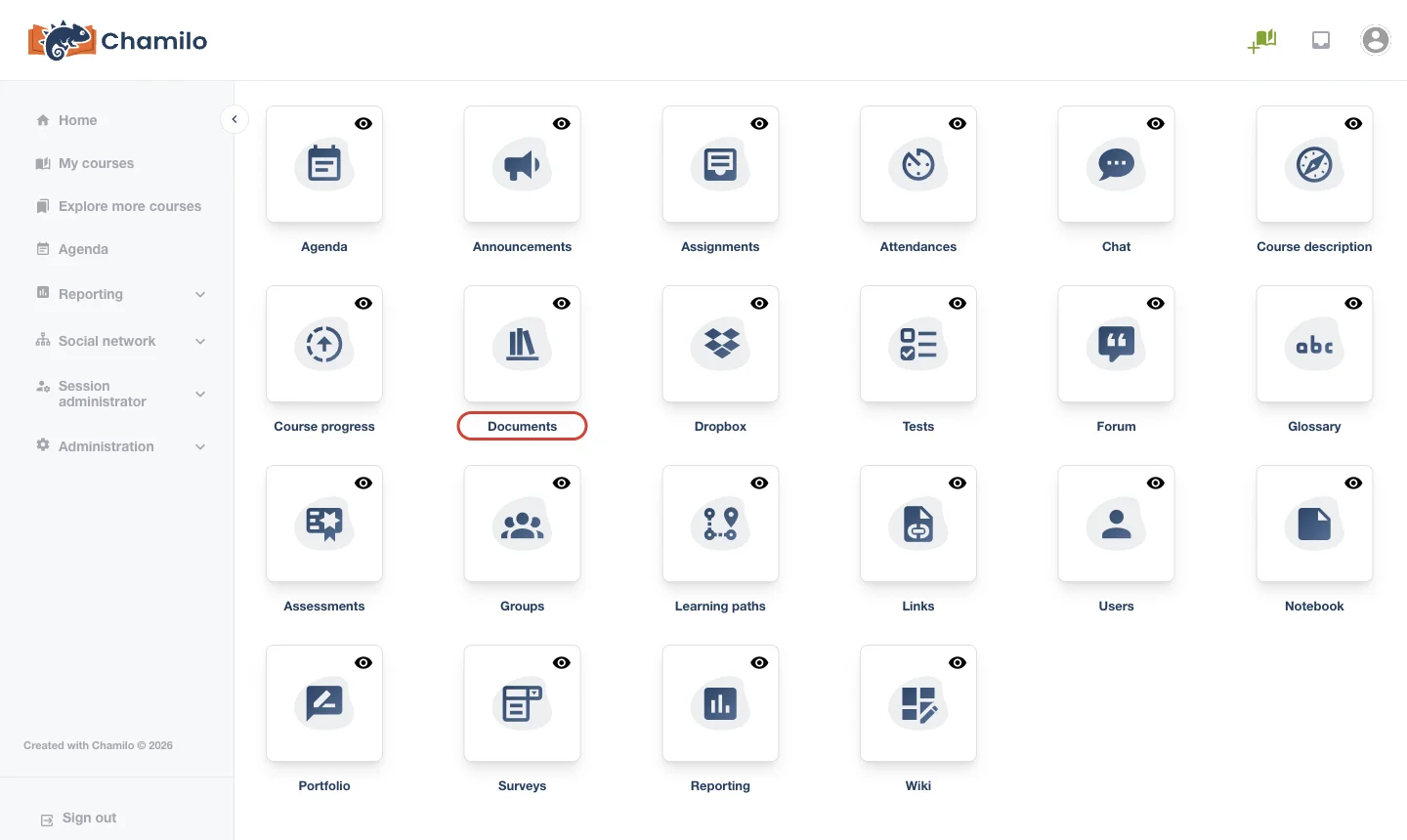
In the green toolbar at the top, click the Upload button. It is the second icon.
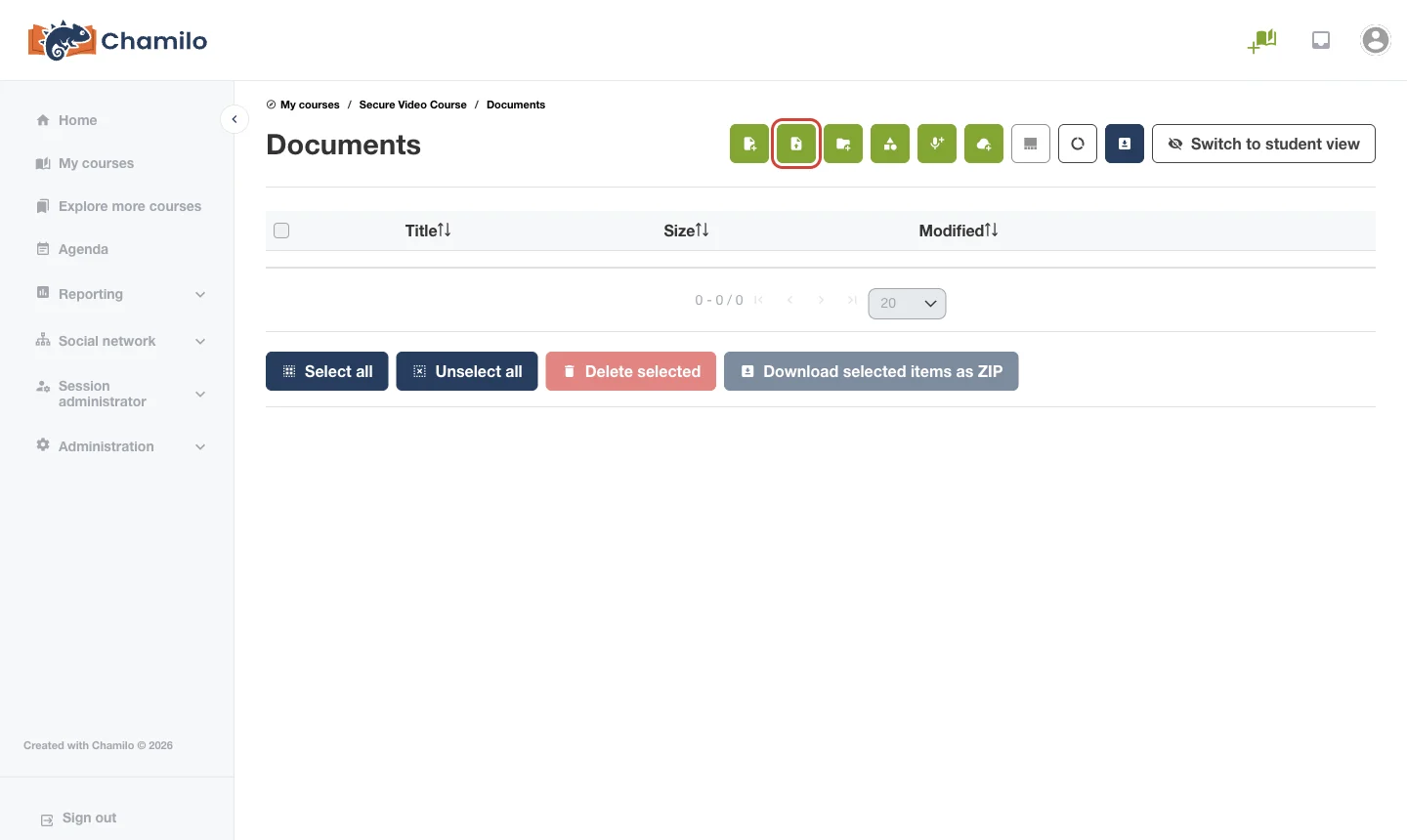
Step 7: Upload the HTML file
Drag the HTML file onto the upload area, or click browse files and pick it. Click Upload 1 file.
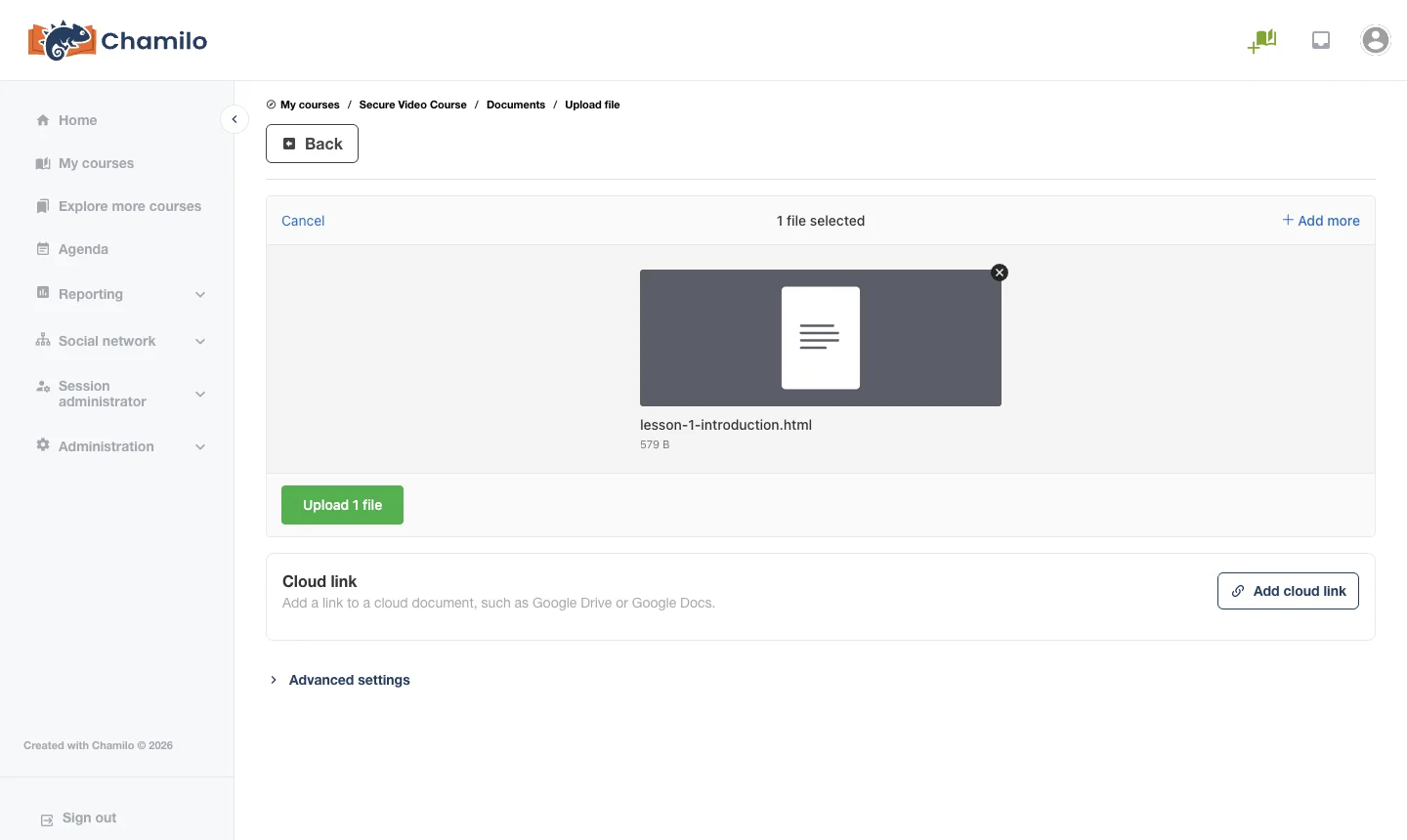
Go back to Documents. The lesson file is now in the list.
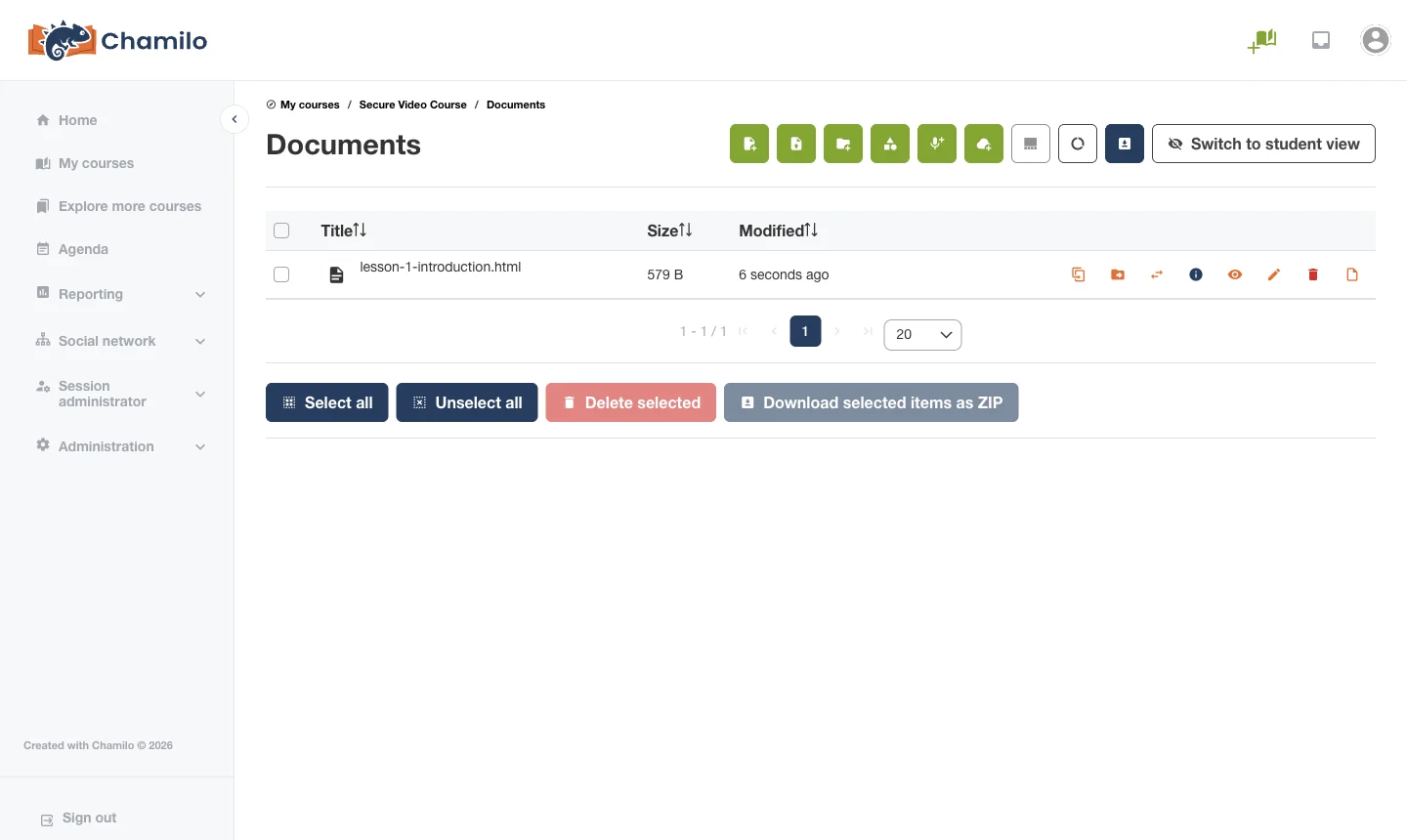
Step 8: Preview the video
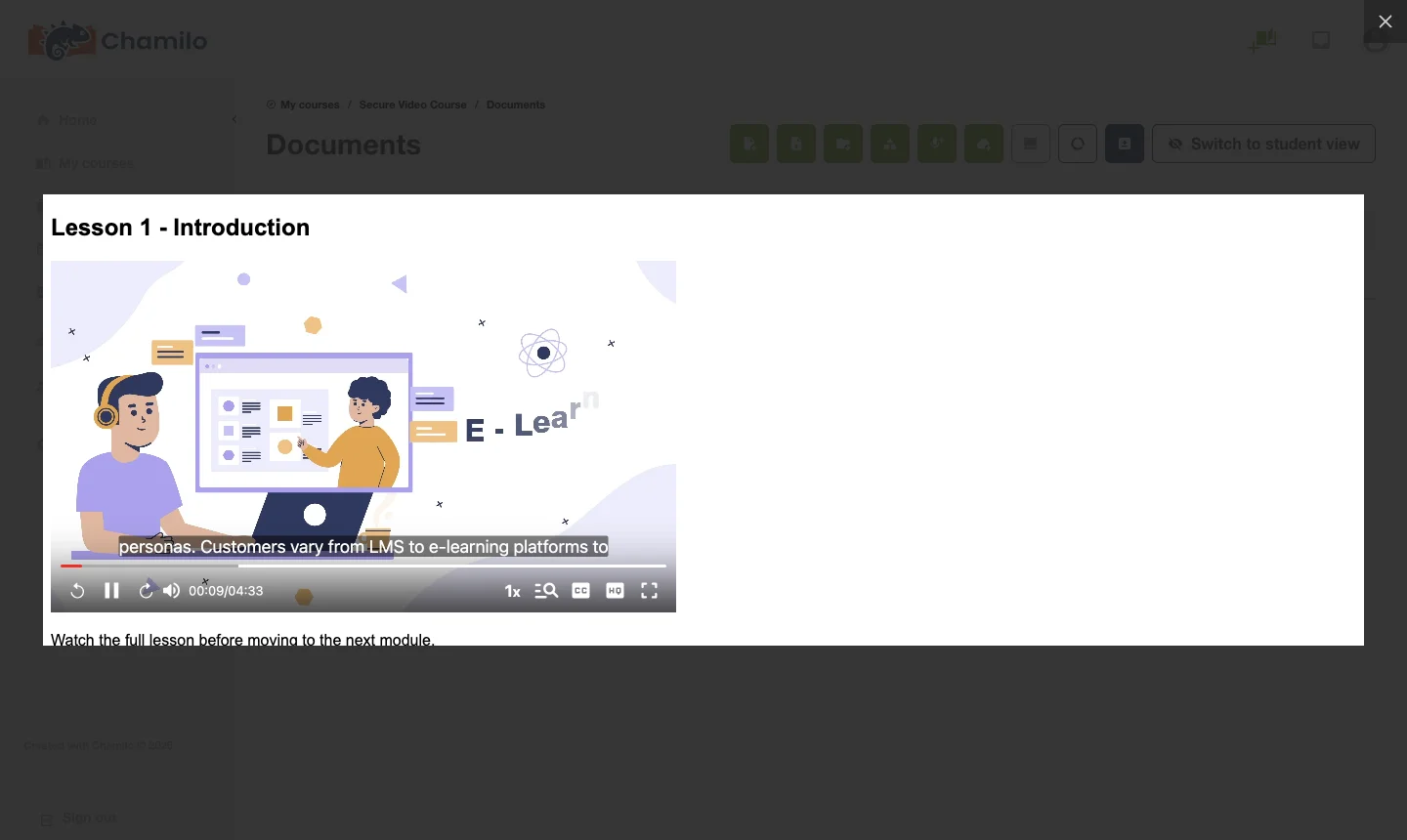
Click the file name. Chamilo opens the lesson in a preview with the VdoCipher player inside it. Press play to check the video, the watermark and the captions, if you added them.
Step 9: Add the lesson to a learning path
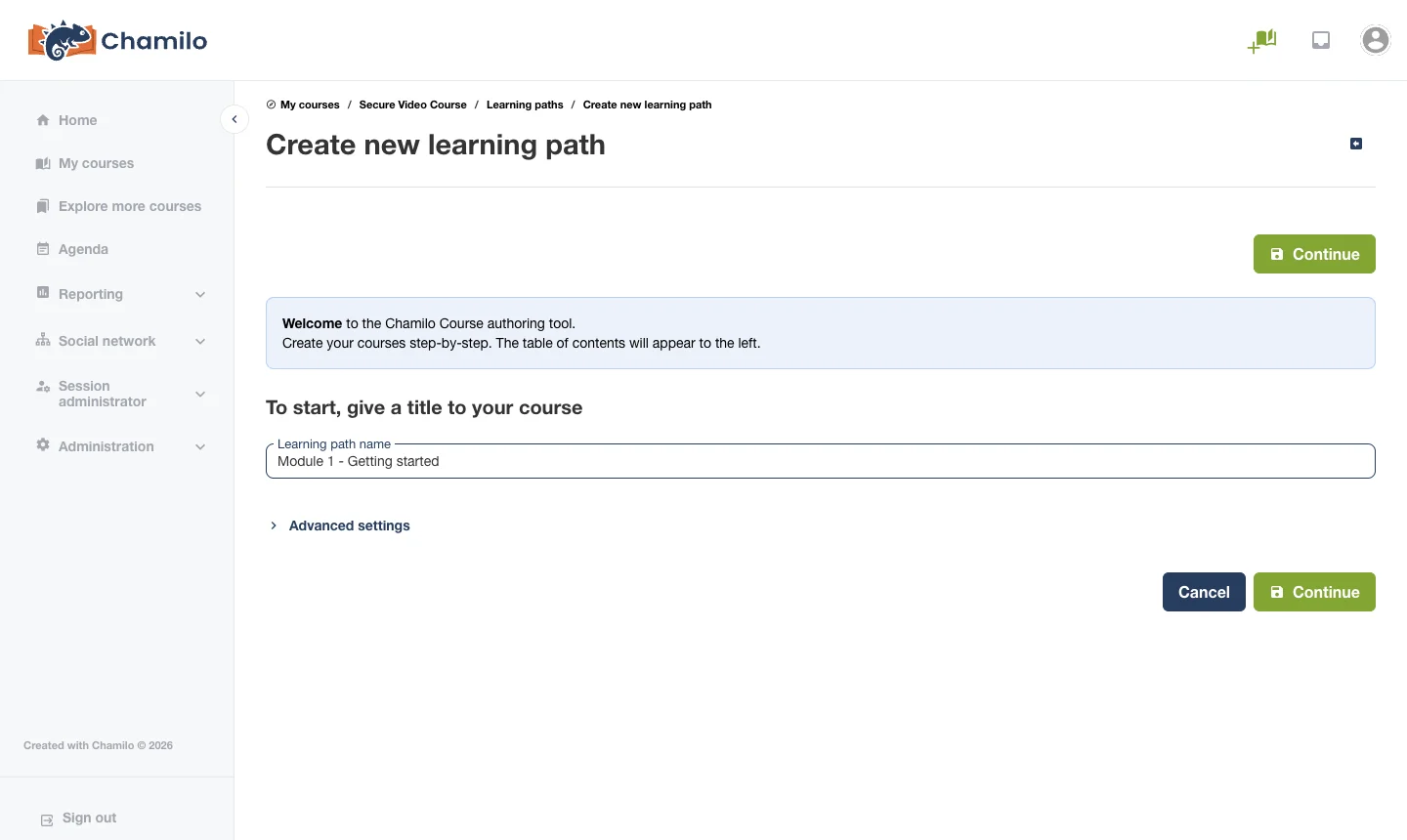
Students usually take a Chamilo course through learning paths, so put the lesson there. Open the course, click Learning paths, then Create new learning path. Give it a name, for example “Module 1 – Getting started”, and click Continue.
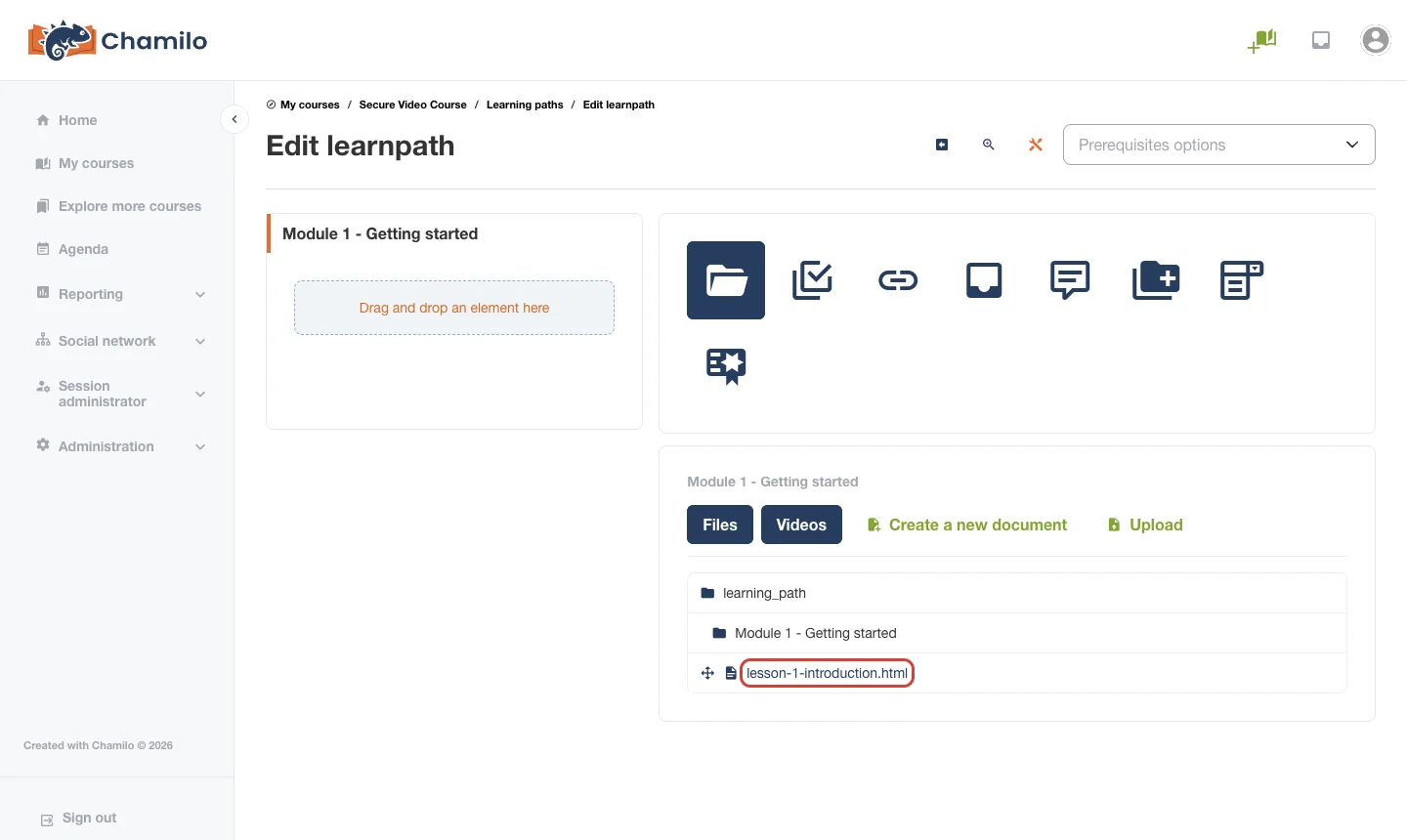
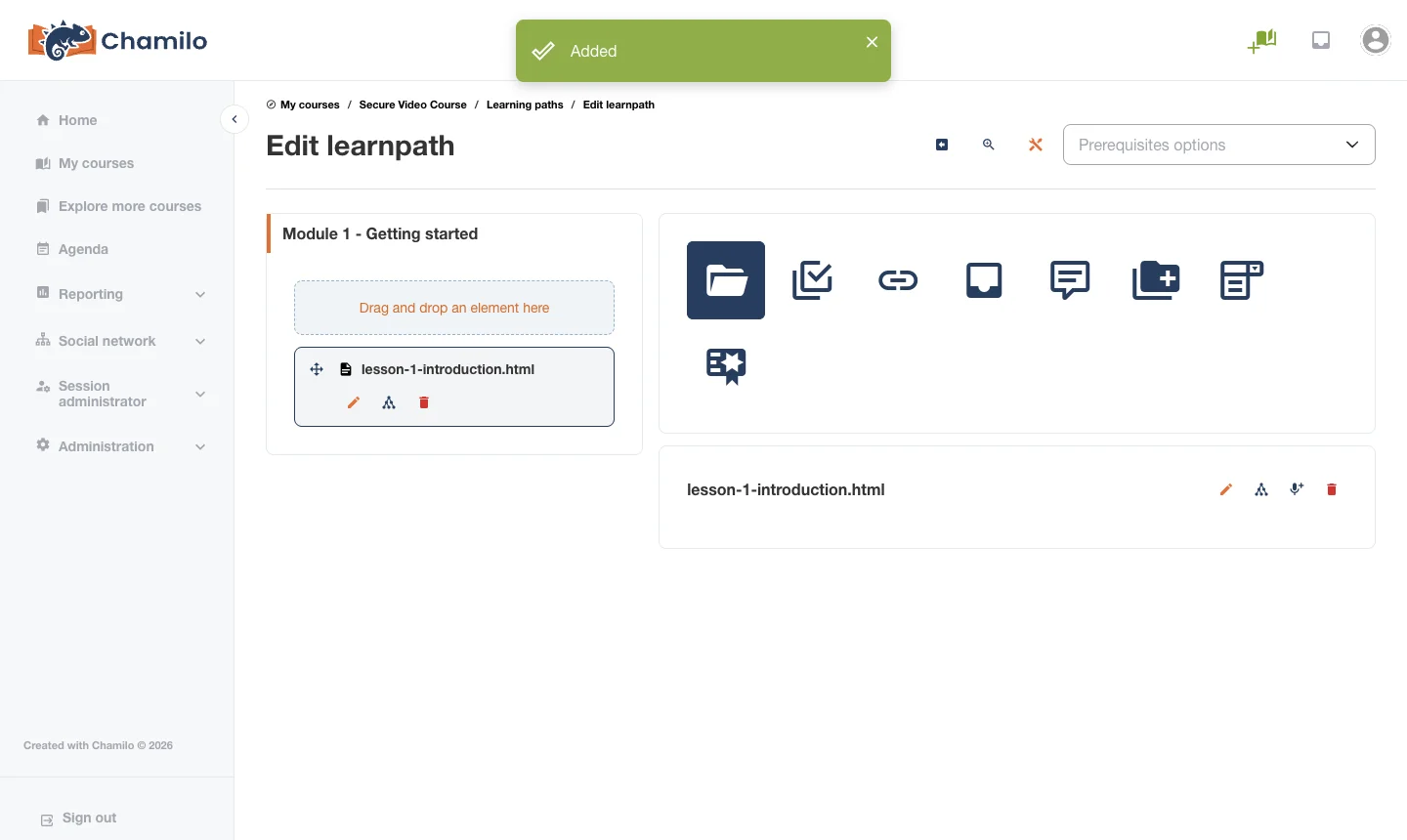
The learning path builder opens. The folder icon is already selected, and your course documents are listed under it. Click the lesson file name. Don’t drag it; one click is enough.
Chamilo shows a green Added message, and the lesson appears in the path on the left. Repeat this for your other lessons. Use the move handle to change the order.
Step 10: Check it as a student
Open the learning path, or click Switch to student view on the course home. The table of contents is on the left and the VdoCipher player is on the right. Play the video once to confirm everything works before you invite students.
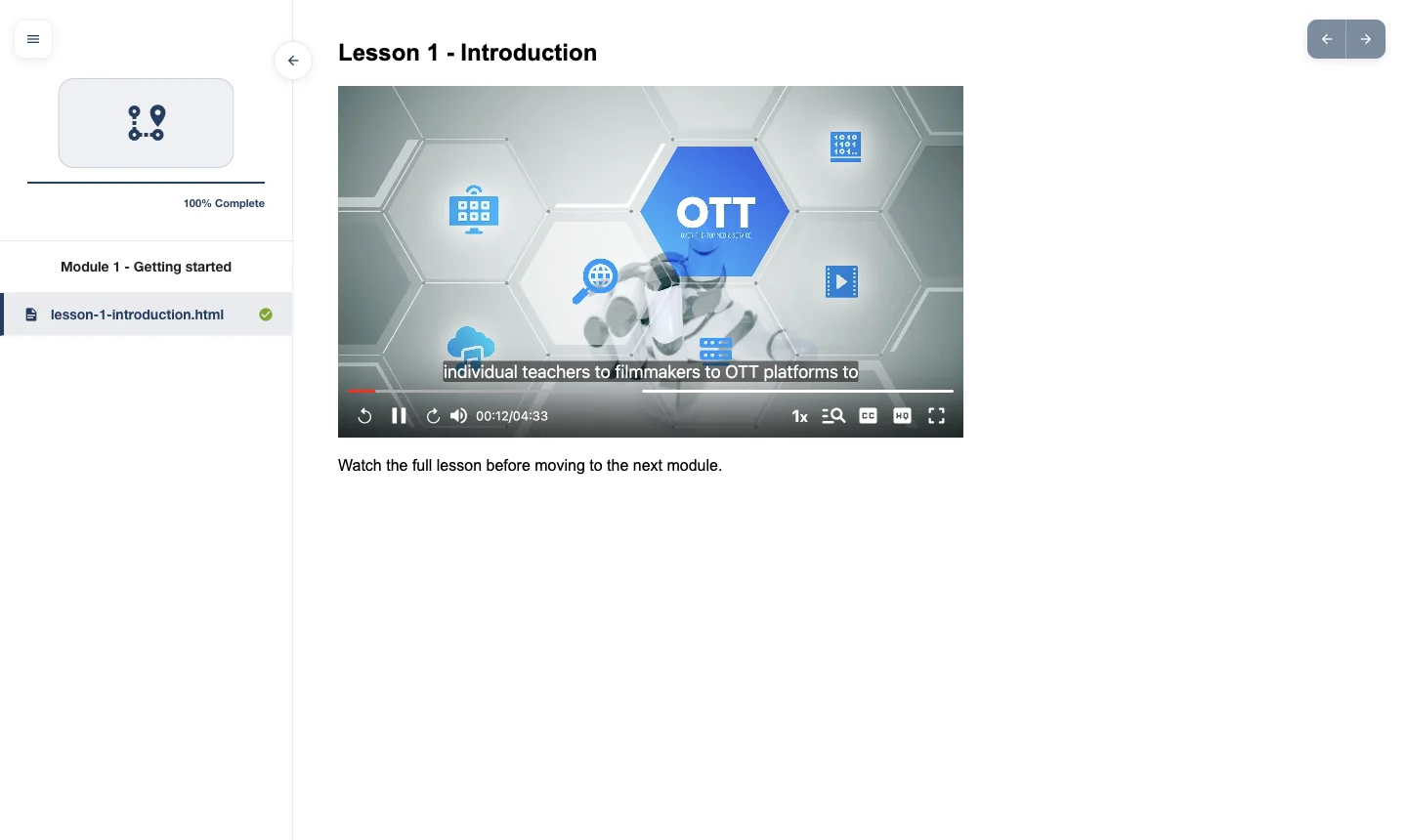
That’s it. Your Chamilo course now plays DRM-protected video from VdoCipher, and there is no video file on your Chamilo server for anyone to download.
Protect your Chamilo course videos from piracy. VdoCipher gives you DRM encryption, dynamic watermarking and screen capture blocking. Start your free trial.
Why not paste the embed code in the Chamilo editor?
It’s the first thing everyone tries: Documents → New document, open the source code view, paste the iframe and save. In Chamilo 3.0.1 the video disappears as soon as you close the source code window. This happens with YouTube embeds too, not just VdoCipher.
Chamilo has two editor settings for this, Allow iframes in HTML Editor and Allow insertion of widgets, under Administration → Settings → Editor. We turned both on and the editor still removed the iframe. The theme’s editor script (var/themes/chamilo3/tiny-settings.js) builds the editor config twice, and the second pass blocks iframes again. Chamilo also cleans saved HTML with a filter that only allows iframes from YouTube, Vimeo, Google Maps, SlideShare and your own domain.
Uploading an HTML file avoids all of this. Chamilo stores uploaded files as they are, so the embed code is not touched. It also works without changing any admin settings.
One more warning if you open the Editor settings page anyway: in our install, many settings that were actually off showed Yes in the dropdown. Clicking Save settings would have switched all of them on, including MathJax. Check each dropdown before you save that page.
Chamilo video options compared
| What you get | MP4 uploaded to Chamilo | YouTube / Vimeo embed | VdoCipher embed |
| Download protection | None – each document has a download link | Weak – free downloaders work | DRM encrypted, no downloadable file |
| DRM | No | No | Widevine + FairPlay |
| Who can watch | Anyone with the file | Anyone with the link (unlisted) | Only on whitelisted domains |
| Viewer watermark | No | No | Dynamic – name, email, IP or user ID |
| Load on your server | High – every view streams from Chamilo | None | None – streamed from a CDN |
| Adaptive quality | No – one file, one quality | Yes | Yes |
| Ads and recommended videos | No | YouTube can show them | No |
| Video analytics | Only Chamilo’s own lesson tracking | Channel-level stats | Per-video and per-viewer watch data |
If your course is free and public, YouTube is fine. If students pay for it, or if it’s internal training, a leaked video costs you money or exposes confidential material. That’s where video piracy protection matters.
Troubleshooting
The player shows an “Error” screen with “Protected Content” in the message. The browser is blocking DRM playback. Use a normal window, not incognito, and allow Protected content in Chrome under Settings → Privacy and security → Site settings → Additional content settings. Chrome, Edge, Firefox and Safari all support DRM. Some embedded or very old browsers don’t. More on this in our guide to DRM in Firefox.
The video area is blank inside Chamilo. Check that your Chamilo domain is in the domain whitelist of the embed code. If you test on a different domain or on localhost, add that domain too or remove the whitelist while testing.
The embed code disappeared after you pasted it. You pasted it into the Chamilo editor. Use the HTML file upload method from Step 5 instead.
You want to replace the video in a lesson. Edit the HTML file on your computer, put in the new embed code and upload it again.
FAQs
Is there a VdoCipher plugin for Chamilo?
No, and you don’t need one. A VdoCipher video is an iframe embed. Upload it to Chamilo in an HTML file and it works in Documents and in learning paths. If you use Moodle, see our Moodle video plugin guide.
Is Chamilo free?
Yes. Chamilo is open source under the GNU GPL v3 license. You can download it from GitHub and install it on your own server using the official installation guide. You only pay for hosting, plus any paid services you add on top, like video hosting.
Can students download VdoCipher videos from Chamilo?
No. There is no video file in Chamilo, only the embed code. The stream is DRM encrypted, so downloader extensions and tools like yt-dlp can’t save a playable copy. If someone screen-records the lesson, the dynamic watermark shows whose account it came from.
Does this work in Chamilo learning paths?
Yes. We added the HTML lesson to a learning path and the video played in the student view. Chamilo also marks the lesson as viewed in the progress bar.
Which Chamilo version is this guide for?
We tested it on Chamilo 3.0.1, the latest stable release when we wrote this. The upload method uses only the standard Documents and Learning paths tools, so it doesn’t depend on special settings or plugins.
Can I add more than one video to a lesson?
Yes. Put as many iframes as you want in the same HTML file. You can mix VdoCipher videos with YouTube embeds if some of your content is free.
Which other LMS platforms work with VdoCipher?
VdoCipher works with any LMS that accepts an iframe embed. We have step-by-step guides for LearnDash, Tutor LMS and Hotmart, and a list of the top LMS platforms. For your own website, see how to embed video in HTML.
Try VdoCipher free for 30 days.
Highest protection against piracy. Google Widevine and Apple FairPlay DRM, dynamic watermarking, piracy tracker and advanced analytics, all included. No credit card needed.


Leading Growth at VdoCipher. I love building connections that help businesses grow and protect their revenue. Outside of work, I’m always exploring new technology and startups.
Leave a Reply