We usually play a video file stored on a server by placing its url as a src in an online video player or basic html5 player or a player sdk. But if we encounter a DRM encrypted video stream which if we try to play will result in an error. Also, these DRM stream files do not look like a .mp4 etc ending url. A normal video player cannot play it and requires a specialized DRM player for playback. In this article we will understand how a DRM player works ensuring a smooth DRM protected playback.
Table of Contents:
- What is a DRM Video Player?
- Normal Player vs DRM Player
- How a DRM Player Works?
- Browser DRM Player Vs App DRM Player
- Widevine Vs FairPlay in DRM Player Context
- Example DRM Player with Dynamic Watermark
- What Security can a Player provide in addition to DRM?
- DRM Player Terminologies
- How to Implement DRM Video Player using VdoCipher’s Embed Code
- Demos
What is a DRM Video Player?
A DRM player is not just a video player that plays a file or a stream.
It is a player that can understand encrypted video, talk to a license server, and securely decrypt content during playback without exposing the actual keys.
A DRM player does not directly “open” a video file.
Instead, it:
- Identifies that the content is protected
- Figures out which DRM system to use (Widevine / FairPlay)
- Requests permission (license) from a server
- Passes that license to a secure system (CDM / OS DRM)
- Only then allows playback of encrypted video segments
Normal Player vs DRM Player
Whenever a playback is requested, A normal player asks:
“Where are the media bytes?”
But, a DRM player must also ask:
“Which trusted key system can decrypt these bytes, how do I negotiate with it, and how do I deliver the right opaque request/response blobs so decryption can happen without exposing keys to page JavaScript?” – https://www.w3.org/TR/encrypted-media-2/
Normal player workflow:
Read manifest >> fetch segments >> decode >> play
A DRM player workflow:
Read manifest >> detect DRM >> identify key system >> create DRM session >> generate license request >> get license response >> enable protected decryption >> fetch encrypted segments >> play
How a DRM Player Works?
Let’s understand the working of a DRM player working in a browser based environment. We will discuss how it is different from an app based environment a bit later.
In browsers, DRM playback is controlled through EME (Encrypted Media Extensions), which lets JavaScript choose a DRM system, create sessions, exchange license messages, and attach decryption capability to the video element. In many web playback flows, media is also fed through MSE (Media Source Extensions), while the actual decryption happens inside the browser/device DRM module, usually called a CDM (Content Decryption Module). This prevents the content keys from being exposed.
A DRM player is therefore not just reading a video URL and playing it. It has to do extra work: detect protection, identify the right DRM system, request a license, pass that license to the DRM module, and only then allow playback of encrypted segments. On Apple browsers, this usually means FairPlay with HLS, while on Chrome-family browsers and many other environments it usually means Widevine with Common Encryption-based content.
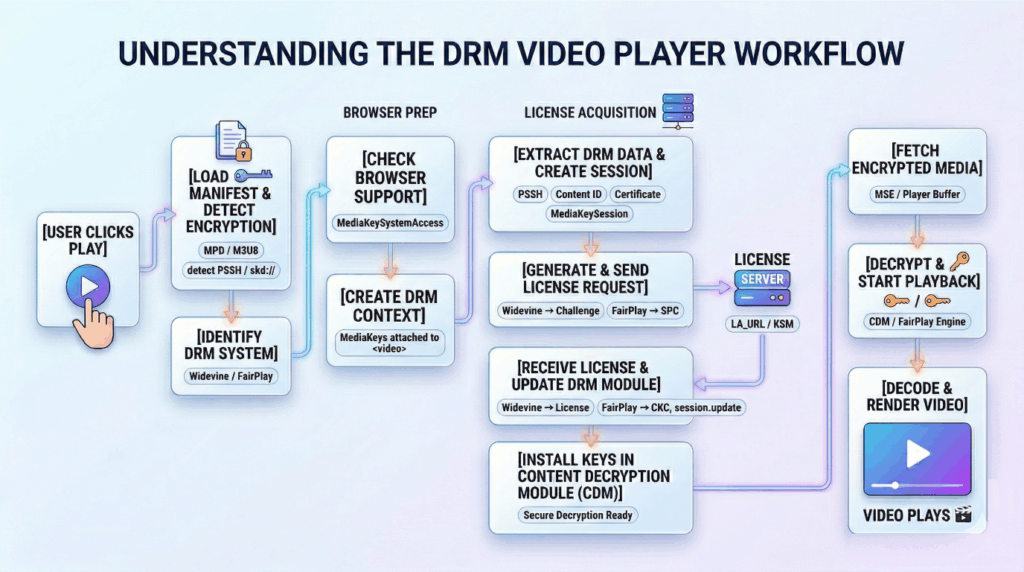
Now, let’s understand it in simple terms step by step.
Step 1: Playback Request
A user presses play on a video. The user does not know whether the video is DRM protected, whether the browser supports Widevine or FairPlay, or whether a license request will be needed.
At this point, the player receives a stream URL such as:
- an MPD file for DASH,
- an M3U8 file for HLS,
- or, in some setups, initialization/media fragments in fMP4 form.
The player starts by loading the manifest or entry stream resource just like a normal adaptive player would.
Step 2: Read the Manifest / Container Information
The player now parses the manifest to understand:
- available video and audio tracks,
- resolutions and bitrates,
- segment URLs,
- codecs,
- and whether the content is encrypted.
For Widevine / DASH, the MPD often contains <ContentProtection> entries and may point to CENC-related DRM metadata. For FairPlay / HLS, the M3U8 contains encryption signaling through tags such as #EXT-X-KEY, commonly using Apple’s FairPlay key format and an skd:// URI. That is how the player first realizes: “this is not a normal clear stream; this is DRM-protected content.”
Step 3: Detect Which DRM System Is Needed
After parsing the manifest, the player identifies which DRM system should be used.
For Widevine
The player looks for Widevine-related DRM signaling, typically through DASH ContentProtection entries and Common Encryption metadata. Google documents Widevine as a DRM system used with EME and Common Encryption standards. – https://developers.google.com/widevine/drm/overview
For FairPlay
The player looks for FairPlay signaling in HLS, especially the key information in the playlist and the skd:// identifier that tells the player this content should go through Apple’s FairPlay Streaming flow. Apple documents FairPlay Streaming as its DRM system for delivery of encrypted HLS content to Apple devices and Safari. – https://developer.apple.com/streaming/fps/FairPlayStreamingOverview.pdf
At this stage, the player has not decrypted anything. It has only identified which protection path it needs.
Step 4: Check Browser DRM Capability
Now the player checks whether the browser can actually handle that DRM system.
Through EME, JavaScript asks the browser something like:
- do you support Widevine for this media type and codec?
- or do you support FairPlay for this media type and playback path?
This is a capability negotiation step. If the requested DRM system, codec, or format is not supported, playback fails here before any real media decryption begins. EME is specifically designed for this key-system selection and license control flow. – https://www.w3.org/TR/encrypted-media-2/
So the player now knows both:
- what DRM the content requires, and
- whether the browser can support it.
Step 5: Create DRM Context and Attach It to the Video Element
Once support is confirmed, the player creates the DRM context for playback.
In EME terms, the browser provides objects like:
- MediaKeySystemAccess
- MediaKeys
- MediaKeySession
These objects are the browser-side control layer between your player code and the actual DRM module. After MediaKeys are created, they are attached to the video element so that encrypted media playback can be tied to the correct DRM system.
This is one of the biggest differences from a normal player. A normal player can just point the video element toward the media. A DRM player must first bind the video element to a DRM system.
Step 6: Extract DRM Initialization Data
Now the player needs to gather the exact DRM initialization data required to request the correct decryption key.
In Widevine
This usually comes from PSSH / CENC initialization data, which may be present in the MPD or in the initialization segment. This data helps the CDM understand what keys are needed and what type of challenge should be generated. EME’s request flow is built around passing such initialization data into the DRM session.
In FairPlay
The player extracts the content identifier, usually from the skd:// URI in the HLS playlist. FairPlay playback also commonly requires an application certificate to help generate the key request message correctly. Apple’s FairPlay documentation and debugging guidance both describe this certificate-plus-content-ID based request flow.
This step is important because the player is not yet asking for a key. It is collecting the exact information needed to ask for the right key.
Step 7: Create a DRM Session
The player now creates a session for this playback attempt.
A MediaKeySession represents the active DRM conversation for the current content. This session will be used to:
- generate the initial license challenge,
- receive updates,
- store key status information,
- and maintain decryption state during playback. EME formally defines this session-based model.
Think of this as opening a secure conversation channel between the player and the browser’s DRM Module.
Step 8: Generate the License Challenge
This is the point where the DRM module turns initialization data into a real license request message.
Widevine Flow
The player passes the initialization data into the session, usually with a generateRequest() call. The browser then hands that data to the Widevine CDM, which creates a license challenge. That challenge is emitted back to the player through the session’s message flow. This is standard EME behavior.
FairPlay Flow
For FairPlay, Safari/FairPlay uses the content identifier plus the FairPlay application certificate to generate an SPC (Server Playback Context) message. This SPC is the FairPlay-side equivalent of the initial request blob that must be sent to the server. This will be used to receive the CKC from KSM.
So at this step:
- Widevine generates a challenge,
- FairPlay generates an SPC.
Both are opaque binary DRM messages, not normal JSON requests.
Step 9: Send the License Request to the License Server
The player now acts like a messenger. It receives the DRM message and sends it to the backend license service.
For Widevine
The player sends the Widevine challenge to the Widevine license server. This request may include headers, tokens, cookies, entitlement information, or custom data depending on the provider. EME leaves the transport logic to the application, which is why players expose hooks like headers and request preprocessing.
For FairPlay
The player sends the SPC to the FairPlay key server, often called the KSM (Key Security Module / Key Server Module) in FairPlay setups.
At this point, the player is still not decrypting content. It is only forwarding a DRM-generated request to the server.
Step 10: License Server Processes the Request
Now the server side does the real entitlement and key lookup work.
The license server typically:
- authenticates the request,
- checks whether the viewer is allowed to play,
- identifies the requested key or asset,
- packages usage rules,
- and creates the response blob for the browser/device DRM module.
For Widevine
The response is a license containing the information required by the Widevine CDM to unlock playback.
For FairPlay
The response is a CKC (Content Key Context), which is the FairPlay server response corresponding to the earlier SPC request.
The important point is that the server does not send the clear key in a way that page JavaScript can safely use directly. It sends a DRM-system-specific protected response meant for the CDM / FairPlay module.
Step 11: Pass the License Response Back to the Browser DRM Module
The player receives the license response from the KSM/license server and passes it back into the active DRM session.
Widevine
The license blob is passed into the session update flow so the Widevine CDM can process it. EME defines this as the update() stage.
FairPlay
The CKC is passed back into the FairPlay playback session so Safari’s FairPlay Module can process it and enable decryption.
This is another key point: the player is not decoding the license itself. It only transports it back into the DRM system.
Step 12: Keys Become Usable Inside the CDM / FairPlay Module
Once the DRM module accepts the response:
- the key becomes available in the protected playback path,
- playback permissions are applied,
- key status can be tracked,
- and the stream is now allowed to decrypt during playback.
In EME, the key exchange is under application control but the actual protected decryption handling depends on the key system implementation. The CDM is the protected side of this design. Apple’s FairPlay overview similarly describes FPS as securely delivering and protecting keys for playback.
This is the real security boundary:
- JavaScript helps with request and response transport,
- but the usable decryption state lives inside the DRM subsystem.
Step 13: Download Encrypted Media Segments
Only now does encrypted media playback truly proceed.
The player starts fetching:
- video init segments,
- audio/video media segments,
- subtitles or alternate tracks if needed.
These segments are still encrypted. In many browser implementations, the player appends them into MSE buffers for playback. The EME model is specifically designed to work alongside media delivery where protected media is processed by the browser playback stack and decrypted through the DRM system rather than by raw page JavaScript.
So even though segment fetching looks similar to a normal adaptive player, the contents are not directly playable yet.
Step 14: Decryption Happens During Playback
When encrypted samples reach the playback pipeline, the DRM module uses the active license/session to decrypt them.
Widevine
The Widevine CDM handles the decryption path for the protected samples. Google documents Widevine as a DRM system working through EME and common encryption-based playback.
FairPlay
FairPlay decrypts the encrypted HLS media path using the content key delivered through the FairPlay process.
The crucial point is:
- the player app fetches encrypted bytes,
- but the actual unlocking of those bytes happens in the DRM module, not in the normal JS scope.
Step 15: Decode and Render
After decryption, the browser can decode the media and render it to the screen and audio output.
So the final effective flow becomes:
Manifest >> Detect DRM >> Create session >> Generate request >> License server >> Response back to DRM module >> Fetch encrypted segments >> Decrypt in DRM path >> Decode >> Render
This overall architecture is exactly why EME exists: to let applications control license exchange while keeping the trusted decryption side inside the browser/device DRM implementation.
Browser DRM Player Vs App DRM Player
| Category | Browser DRM (Web) | App DRM (Android / iOS / TV) |
| Core Pipeline | JS Player >> EME >> CDM >> Decrypt >> Play | Native Player >> OS DRM >> CDM/Hardware >> Decrypt >> Play |
| Key Difference | JavaScript controls DRM via EME | OS / Native player controls DRM internally |
| Architecture | JS >> Player (Shaka/Bitmovin) >> EME >> CDM >> Decoder | App >> Native Player (Exo/AVPlayer) >> OS DRM >> Secure Decoder |
| Who controls DRM | Developer (manual control) | OS handles most logic |
| Session Creation | You create (MediaKeySession) | OS creates automatically |
| License Request | You generate + send manually | Player/OS handles internally |
| License Response Handling | You call session.update() | OS handles key installation |
| Encryption Handling | CDM via EME | CDM via OS DRM framework |
| Debugging | Easier (visible in JS/network) | Harder (OS black box) |
| Security Level | Medium >> High (mostly software CDM). Usually L3. | High (hardware-backed DRM). Usually L1. |
| Pipeline Visibility | Transparent (you see flow) | Hidden (internal OS flow) |
Widevine vs FairPlay in DRM Player Context
| Stage | Widevine (Google) | FairPlay (Apple) |
| Streaming Format | DASH / Common Encryption (CENC) | HLS (M3U8) |
| Detection by Player | Reads MPD with <ContentProtection> / PSSH | Reads M3U8 with EXT-X-KEY + skd:// |
| DRM System Used | Widevine CDM | FairPlay Streaming (FPS) |
| Initialization Data | PSSH (initData, KID) | Content ID (from skd://) + Certificate |
| DRM Setup Requirement | No certificate required (usually) | Requires Application Certificate |
| Request Generation | Generates License Challenge | Generates SPC (Server Playback Context) |
| Request Sent To | Widevine License Server | FairPlay Key Server (KSM) |
| Server Response | Widevine License | CKC (Content Key Context) |
| Response Handling | Passed to CDM via session.update() | Passed to FairPlay module |
| Key Storage & Security | Inside Widevine CDM | Inside FairPlay secure pipeline |
| Decryption Happens In | CDM (browser/app) | FairPlay engine (Safari / iOS) |
| Output After Decryption | Decrypted frames >> decoder >> player | Decrypted frames >> decoder >> player |
| Developer Complexity | Medium (EME-based flow) | Higher (certificate + SPC/CKC flow) |
| Platform Support | Chrome, Android, Smart TVs | Safari, iOS, macOS |
Example DRM Player with Dynamic Watermark
What Security can a Player provide in addition to DRM?
| Additional Security Layer | What It Does |
| Dynamic Watermarking | Adds user-specific info like email, contact, IP, time, etc,, dynamic watermark on video with color, transparency, size, speed of movement customization. This deters screen-capture and helps with DMCA takedowns. |
| User-Based Analytics | Tracks playback behavior (IP, devices, sessions) |
| User Authentication | Ensures only authorized users can access content |
| Access Management | Controls who can watch what (subscription, packages) |
| License Expiry Control | Limits playback duration per session |
| Geo Blocking | Restricts playback by country/location |
| IP Restriction | Limits access to specific IP ranges |
| Anti-Download Protection | Prevents downloading via extensions/plugins |
| Screen Recording Deterrence | Combined with watermarking to discourage piracy |
| URL Tokenization / Masking | Uses short-lived, secure playback URLs |
| Offline Secure Playback (Apps) | Allows encrypted download in apps only |
| Piracy Tracking & Identification | Identifies source of leaked content |
All above discussed additional security features are available with VdoCipher’s DRM Player which also supports UI based customisations like Player look and feel, Play button, seek bar, colors, logo, responsiveness, embed styling, Autoplay, start time, speed control, Subtitles & Tracks, Multi-language subtitles, etc. Explore more custom UI features at – https://www.vdocipher.com/page/custom-video-player/
Start Free 5 GB DRM player trial at: www.vdocipher.com
DRM Player Terminologies
PSSH : DRM metadata in video that tells which key is needed (Widevine/DASH)
SKD URL (skd://) : FairPlay identifier used to fetch the correct content key
EME (Encrypted Media Extensions) : Browser API that enables DRM playback
MSE (Media Source Extensions) : Browser API that loads and buffers video segments
CDM (Content Decryption Module) : Secure system that stores keys and decrypts video
MediaKeySystemAccess : Checks if the browser supports a DRM system
MediaKeys : Connects the DRM system to the video element
MediaKeySession : Active DRM session handling license exchange
InitData / PSSH Data : Input used to generate the license request
License Challenge : Request sent to the license server (Widevine)
SPC (Server Playback Context) : License request in FairPlay
License : Response from server with decryption rights (Widevine)
CKC (Content Key Context) : License response in FairPlay
License Server (LA_URL / KSM) : Backend that provides playback permission and keys
KID (Key ID) : Unique identifier for the encryption key
CENC (Common Encryption) : Standard encryption format used across DRM systems
Content ID : Identifier used in FairPlay to fetch the correct key
DRM Session : Secure communication between player and DRM system
Widevine L1 / L3 : Security levels (L1 = hardware secure, L3 = software)
TEE (Trusted Execution Environment) : Hardware-secure area where decryption happens
How to Implement DRM Video Player using VdoCipher’s Embed Code
Your website backend needs to send the OTP and playbackInfo to the site frontend, to authorize video playback. More details on the player embed code can be found in the VdoPlayer Reference.
<iframe

src="https://player.vdocipher.com/v2/?otp=[[REPLACE_WITH_OTP]]&playbackInfo=[[REPLACE_WITH_PLAYBACKINFO]]"

style="border:0;width:720px;height:405px"

allow="encrypted-media"

allowfullscreen

></iframe>
You may wish to change the id of the global div, from embedBox to something more unique. For instance, you may append a random number to embedBox, so that each video player displayed on your page has a unique id.
Also, this is just a HTML5 embed code example. VdoCipher also provide DRM Player SDK for app based playback.
Demos
Add Dynamic watermark to Videos/
Learn how to implement IP Geo restrictions to E-Learning Videos
Supercharge Your Business with Videos
At VdoCipher we maintain the strongest content protection for videos. We also deliver the best viewer experience with brand friendly customisations. We'd love to hear from you, and help boost your video streaming business.