

If you create, produce, or stream video, you deal with resolution constantly 720p, 1080p, 4K. Video resolution is simply the number of pixels in a single video frame: more pixels mean a sharper, more detailed image and a larger file.
This guide covers what video resolution is, how it relates to pixels and aspect ratio, what the “p” and “i” suffixes mean, the standard resolutions in use today, and how to choose the right one for your viewers.
Table Of Content:
- What is Video Resolution?
- What is a Pixel?
- What is Aspect Ratio?
- What do “p” and “i” mean in Video Resolution?
- Types of Video Resolution
- Which Video Resolution Should You Use?
- Why Video Resolution Matters and Why Higher Isn’t Always Better
- How Video Resolution Affects Battery Life on Mobile
- How to Change Video Resolution
- Frequently Asked Questions on Video Resolution
What is Video Resolution?
Video resolution is the total number of pixels in a single video frame, written as width × height. A 3840×2160 video is 3840 pixels wide and 2160 pixels tall — roughly 8.3 million pixels in every frame.
More pixels give the image more blocks of colour to work with, so fine detail and hard edges hold up better, particularly on large screens. That is why resolution is the headline number on any video spec sheet.

There is no single best resolution. Every phone, laptop, television, and digital billboard ships with a fixed pixel count, and a video looks its best when its resolution suits the screen it plays on. A 4K file streamed to a phone spends bandwidth the viewer cannot see, while a 640×360 clip on a 65-inch television looks soft. Choosing a resolution starts with knowing your target devices.
Resolution is also only one part of video quality. Bitrate, frame rate, and codec matter just as much: a 4K video encoded at too low a bitrate can look worse than a well-encoded 1080p one.
Explore More ✅
Stream Your Videos in Multiple Video Resolution
VdoCipher helps you stream your videos in multiple video resolutions as per users network to ensure a smooth streaming experience. You can host your videos securely with features such as Video API, CDN, Analytics and Dashboard to manage your videos easily.
What is a Pixel?
A pixel, short for picture element, is the smallest unit of a digital image: a single dot of one colour. A video frame is a grid of them, running into millions at HD and above. Each pixel’s colour is mixed from three components on screen, RGB (red, green, blue), or four in print, CMYK (cyan, magenta, yellow, black).
Video pixels tie together the three specifications people most often mix up:
- Resolution — how many pixels there are, written as width × height. A 1080p video is 1920×1080.
- Quality — how good those pixels look. Pixel count sets the ceiling, but bitrate, codec, and compression decide how much of it you actually get.
- Aspect ratio — the shape the pixels form, written as width: height. It is independent of resolution: 1920×1080 and 1280×720 are different resolutions with the same 16:9 shape.
What is Aspect Ratio?
Video aspect ratio is the ratio of a video’s width to its height in pixels. A 1920×1080 video has an aspect ratio of 16:9, because 1920:1080 reduces to 16:9.
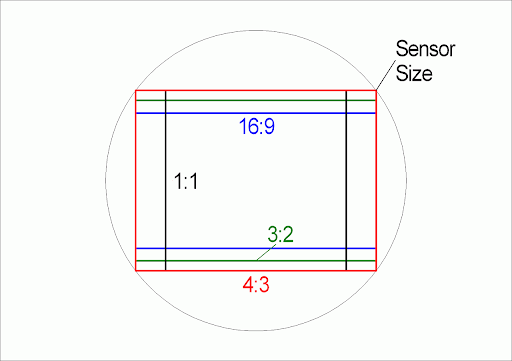
16:9 is the default for online and broadcast video because it fits nearly every television, monitor, and laptop screen. Older standard-definition television used 4:3, and social platforms have added 1:1 (square) and 9:16 (vertical) to the mix.
Aspect ratio matters because it sets the shape of the frame, which decides what gets cropped or letterboxed when the video plays on a screen of a different shape. A 1:1 video made for Instagram sits inside black bars on a 16:9 player. Settling on the aspect ratio before you shoot is what keeps important parts of the frame out of the crop later.
What do “p” and “i” mean in Video Resolution?
The letter after the number tells you how each frame is drawn on screen.
p is progressive scan (480p, 720p, 1080p). Every horizontal line in the frame is drawn in a single pass, so motion looks cleaner and edges stay sharp. Every modern monitor, phone, and streaming platform uses progressive video.
i is interlaced (480i, 1080i). Each frame is split into two fields, the odd lines, then the even lines, drawn one after the other, and the two fields together make one frame. Interlacing was introduced in the early days of television to fit a picture into limited broadcast bandwidth. It survives mainly in legacy broadcast formats, and can show combing artefacts on fast motion.
Types of Video Resolution
Resolutions are usually referred to by name, HD, Full HD, 4K, rather than by their dimensions. Each named tier has a fixed pixel count and, from HD upwards, a 16:9 aspect ratio.
Common Video Resolutions
| Category | Resolution | Format | Description |
|---|---|---|---|
| Standard Definition (SDTV) | 480i | Interlaced (NTSC) | Two interlaced fields of 240 lines (NTSC-compatible) |
| 576i | Interlaced (PAL) | Two interlaced fields of 288 lines (PAL-compatible) | |
| Enhanced Definition (EDTV) | 480p | 720 × 480 (Progressive) | Progressive scan format with improved clarity over SDTV |
| 576p | 720 × 576 (Progressive) | Progressive scan format with PAL compatibility | |
| High Definition (HDTV) | 720p | 1280 × 720 (Progressive) | Entry-level HD resolution, widely used for broadcast |
| 1080i | 1920 × 1080 (Interlaced) | Full HD with interlaced scanning (2 fields of 540 lines) | |
| 1080p | 1920 × 1080 (Progressive) | Full HD with progressive scanning for sharper detail | |
| Quad HD (QHD) | 1440p | 2560 × 1440 (Progressive) | Marketed as 2K; common on flagship phones and gaming monitors |
| Ultra High Definition (UHDTV) | 4K UHD | 3840 × 2160 (Progressive) | Four times the resolution of Full HD |
| 8K UHD | 7680 × 4320 (Progressive) | Sixteen times the resolution of Full HD for extreme detail |
Standard Definition (SD)
Standard definition covers the lowest pixel counts still in regular use: 640×480 (4:3) and 640×360 (16:9) for web video, and 720×480 or 720×576 for DVD. Files are small and bitrates low, so SD streams smoothly on slow connections with little risk of buffering which is exactly why it remains the bottom rung of most streaming ladders. On anything larger than a small phone screen, it looks soft.

High Definition (HD)
HD means 1280×720, or 720p: 1280 pixels across, 720 down, at a 16:9 aspect ratio and about 0.9 megapixels per frame. It is a sensible choice for lightweight web video, webinars, and viewers on modest bandwidth, and it is still a standard broadcast format. For a closer comparison, read our blog on SD vs HD.
Full HD
Full HD is strictly 1920×1080, or 1080p about 2.1 megapixels, roughly twice HD. It is the most common delivery resolution online: sharp on phones, laptops, and most televisions without demanding heavy bandwidth, which makes it the practical top rung for online courses, product videos, and webinars.
2K and Quad HD (1440p)
This is where the naming gets loose. In cinema, DCI 2K means 2048×1080. In consumer marketing, “2K” almost always refers to Quad HD 2560×1440, or 1440p, at 16:9 which packs about 3.7 megapixels, close to 1.8 times Full HD. You will find it on flagship smartphones and gaming monitors, where the extra sharpness is visible at close viewing distances.
Ultra High Definition (4K)
UHD is 3840×2160, also called 2160p: 8.3 megapixels, exactly four times Full HD, at 16:9. It is the standard for premium streaming, large televisions, and theatrical delivery, and it works well on big screens where 1080p starts to soften.
4K also buys editing headroom. Because there are four times the pixels, you can crop or reframe inside a 4K shot and still deliver a full-quality 1080p video. In cinema, DCI 4K is slightly wider at 4096×2160.
8K Resolution
8K UHD is 7680×4320, 33 megapixels, sixteen times Full HD. It is rare in delivery: very few screens can display it, files are enormous, and encoding and storage costs climb steeply. Where it does earn its place is high-end production, where the extra pixels give room for aggressive reframing and visual effects. Unless your video plays on very large screens or goes through heavy post-production, there is little reason to shoot or deliver in 8K.
Which Video Resolution Should You Use?
Choosing the highest resolution does not automatically give the best viewing experience. Perceived quality comes from a combination of resolution, bitrate, frame rate, codec, and the viewer’s internet connection.
Resolution sets how many pixels are displayed; bitrate sets how much data is used to describe them. Too little bitrate for the resolution and the video looks blurry or blocky; more bitrate than the content needs and you burn bandwidth and invite buffering for no visible gain.
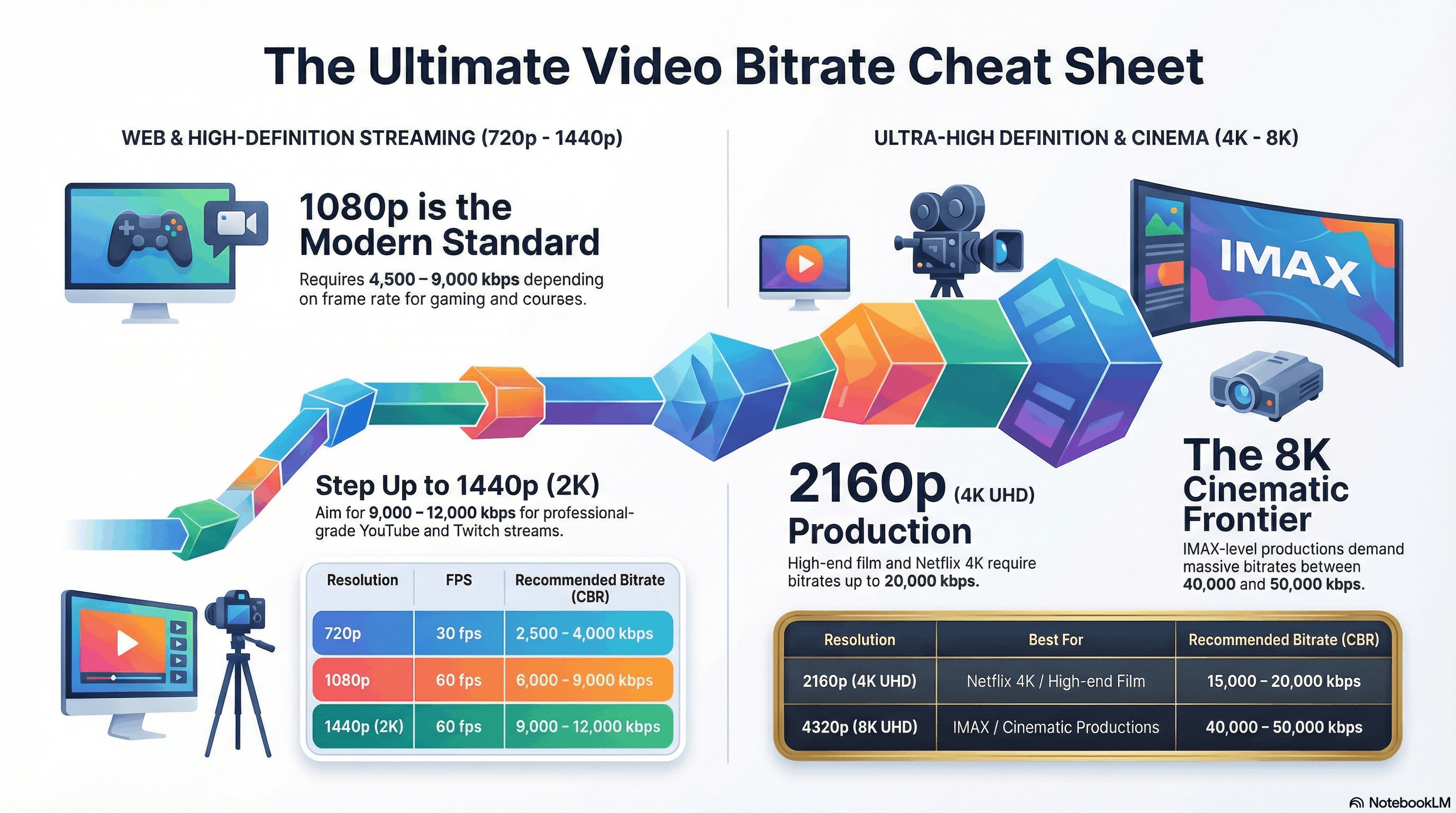
A practical bitrate range for commonly used resolutions:
| Resolution | FPS | Recommended Bitrate (CBR) | Best for |
|---|---|---|---|
| 720p | 30 fps | 2,500 – 4,000 kbps | YouTube, low-bandwidth streaming |
| 1080p | 30 fps | 4,500 – 6,000 kbps | Online courses, gaming, Netflix |
| 1080p | 60 fps | 6,000 – 9,000 kbps | Fast-motion sports, gaming streams |
| 1440p (2K) | 30 fps | 9,000 – 12,000 kbps | Professional YouTube & Twitch streaming |
| 2160p (4K UHD) | 30 fps | 15,000 – 20,000 kbps | High-end film production, Netflix 4K |
| 4320p (8K UHD) | 30 fps | 40,000 – 50,000 kbps | IMAX, cinematic productions |
For most online video, 1080p at 30 fps is the right default, sharp on the screens most people watch on, without heavy bandwidth or storage costs. If your content has a lot of movement, such as sports or gaming, 60 fps makes motion look smoother, but it needs a higher bitrate to hold up.
The right bitrate also shifts with your codec. Newer codecs such as HEVC and AV1 deliver similar quality at lower bitrates than H.264.
Four Questions to Settle First
- What is the video for? Cinematography and premium course content justify a higher resolution; a support clip or social teaser does not.
- How much detail has to be legible? Code on a screen, fine product texture, or text on a whiteboard needs pixels to stay readable.
- What connections are your viewers on? Offer a range of qualities so people on slow networks can still watch without buffering.
- How will the file be delivered? File size limits on emails and file sharing tools will cap the quality you can send.
Use Adaptive Bitrate Streaming
You do not have to pick a single resolution for every viewer. With adaptive bitrate streaming, the same video is encoded at several quality levels, 360p, 480p, 720p, 1080p, 4K and the player picks the best one for the viewer’s connection, device, and screen. If the connection slows mid-playback, the player steps down a rung instead of buffering.
So rather than reaching for the highest resolution, aim for the right balance of quality, bitrate, bandwidth, and content type.

Why Video Resolution Matters – and Why Higher Isn’t Always Better
Resolution shapes both how your video is perceived and how it performs.
- Credibility. A crisp, detailed image reads as professional. A soft or blocky one reads as unfinished a real problem when you are selling a course, a product, or your own work.
- Legibility. Some content carries meaning in its detail: code in a tutorial, stitching in a product close-up, handwriting on a whiteboard. Those need pixels.
- File size and delivery. Pixels cost bytes. Higher resolutions mean bigger files, longer uploads, more storage, more bandwidth, and slower starts which is why making video load faster often means shipping fewer pixels, not more. Our free video compressor helps if you need to bring a file size down.
- Cost. Encoding, storage, and CDN delivery all scale with resolution.
That trade-off is why every resolution below 4K still exists. Sometimes the right move is to reduce resolution deliberately: a smaller file transfers more easily and plays back more reliably on mobile devices. Understanding resolution is what lets you spend pixels where viewers will notice them and save them where they will not.
How Video Resolution Affects Battery Life on Mobile
Higher resolutions ask more of a phone’s decoder, screen, and radio, so they drain the battery faster. Approximate drain while streaming:
| Resolution | Power consumption on mobile | Battery drain per hour (approx.) |
|---|---|---|
| 480p | Low | 8-10% per hour |
| 720p | Moderate | 12-15% per hour |
| 1080p | High | 18-22% per hour |
| 4K UHD | Very high | 25-35% per hour |
| 8K UHD | Extreme | 40-50% per hour |
Actual figures vary with screen size, brightness, codec, and whether the device can decode the format in hardware. To stretch playback time:
- Leave quality on auto so adaptive bitrate streaming can drop the resolution when it is not needed.
- Lower screen brightness when watching high-resolution video.
- Stream over Wi-Fi rather than mobile data to cut radio power draw and heat.
How to Change Video Resolution
To change a video’s resolution, re-encode it in video editing software or a converter: pick the target resolution and format, then export. Keep a backup of the original file, since the pixels you discard are gone for good downscaling is lossy, and upscaling cannot invent detail that was never captured. Reducing a high-resolution video to match a device’s screen or a viewer’s connection speed is called downscaling.
Many current tools, including AI video editor platforms, handle much of this automatically, setting resolution, bitrate, and compression based on device compatibility and streaming requirements. A video hosting platform goes a step further and generates the full ladder of renditions for you, so viewers receive the right resolution without you exporting each one by hand.
Conclusion
Video resolution is a practical decision, not a technical puzzle. Match the pixel count to your content, your viewers’ screens, and their bandwidth, then let bitrate and adaptive streaming handle the rest.
To see the difference for yourself, open any high-definition video on YouTube and step through the Quality menu, from 144p up to 2160p. On a large screen, the jump from 480p to 1080p is obvious. The jump from 1080p to 4K is far subtler which is the whole argument for choosing a resolution deliberately rather than always reaching for the highest one.
Frequently Asked Questions on Video Resolution
What is the best video resolution?
For most everyday content, 1080p is the best default, with 720p a good option for low-bandwidth viewers. 1440p or 4K are worth it when the video plays on large screens or needs cropping room in post-production.
What is Full HD resolution?
Full HD is 1920×1080, 1920 pixels across and 1080 down, at a 16:9 aspect ratio. It is the most common resolution on televisions, laptop screens, and tablets, and is also written as 1080p.
What are the main resolution types?
Common web video resolutions are 640×360 and 640×480, with 720×480 and 720×576 used for DVD. HD is 1280×720 (720p) and Full HD is 1920×1080 (1080p), followed by 2560×1440 (QHD), 3840×2160 (4K UHD), and 7680×4320 (8K UHD).
What is QHD vs UHD?
QHD, or Quad HD, is 2560×1440 — four times the pixels of 720p HD, and often marketed as 2K. UHD is 3840×2160, four times Full HD, and is the successor to Full HD on televisions. Wider variants such as 3440×1440 are sold as ultrawide QHD.
Supercharge Your Business with Videos
At VdoCipher we maintain the strongest content protection for videos. We also deliver the best viewer experience with brand friendly customisations. We'd love to hear from you, and help boost your video streaming business.


A Digital Marketing pioneer who loves to innovate strategies to effectively market a product through consumer research and data analysis. In addition to this I’m a sports and fitness enthusiast with love for travelling and photography.